Understanding your channel’s performance isn’t just helpful, it’s essential for growth. While YouTube Studio provides basic analytics, creators who want to take their channels to the next level need more comprehensive insights and easier-to-understand data visualisation.
VidGent offers a powerful alternative to traditional YouTube analytics tools, providing real-time insights, advanced metrics, and intuitive dashboards that make sense of your channel’s performance.
Unlike basic YouTube Studio analytics, VidGent delivers actionable insights that help you understand not just what happened, but why it happened and what you can do about it.
In this guide, you’ll learn how to connect your YouTube channel to VidGent and start leveraging advanced analytics to grow your audience.
By the end of this setup process, you’ll have access to comprehensive analytics dashboards, real-time performance monitoring, and the insights you need to make data-driven decisions about your content strategy.
Ready to grow your Youtube Channel?
Its free to get started.
What You’ll Need Before Starting
Before you link your YouTube account with VidGent, make sure you have everything ready to ensure a smooth connection:
Essential Requirements:
- An active YouTube channel (any subscriber count or age)
- Access to the Google account associated with your YouTube channel
- Administrative permissions for your YouTube channel
- A stable internet connection
Important Note: You don’t need any technical expertise or coding knowledge. The entire setup process is designed for creators of all technical skill levels. If you can upload a video to YouTube, you can set up VidGent.
Make sure you’re logged into the correct Google account before starting, especially if you manage multiple YouTube channels or have both personal and business Google accounts.
Step 1: Creating Your VidGent Account
Getting started with VidGent is straightforward and takes just a few minutes:
Navigate to VidGent: Visit vidgent.progents.ai in your web browser. You’ll see the VidGent homepage with a clear “Get Started” or “Sign Up” button prominently displayed.
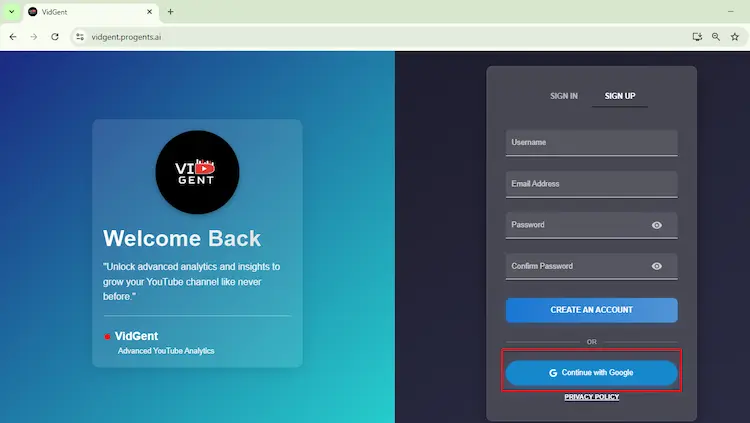
Choose Your Sign-Up Method: VidGent offers multiple ways to create your account:
- Sign up with Google (recommended for YouTube creators)
- Sign up with email and password
For YouTube creators, we recommend using “Sign up with Google” as this streamlines the channel connection process later and the click Continue
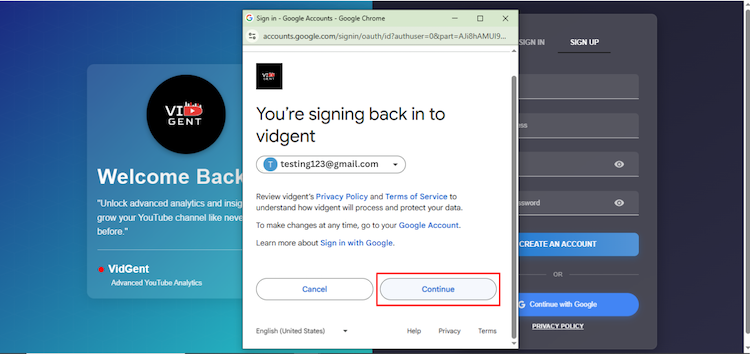
Step 2: Connecting Your YouTube Channel
This is the most crucial step that unlocks all of VidGent’s powerful analytics features:
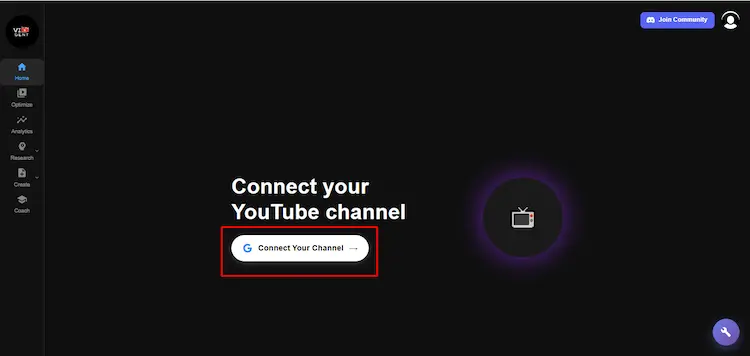
Initiate the Connection: From your VidGent dashboard, look for a “Connect YouTube Channel” button or “Add Channel” option. This is typically prominently displayed for new users who haven’t connected any channels yet.
Confirm Google Account Again: Choose the Google account associated with the channel you wish to connect and click “Continue.”
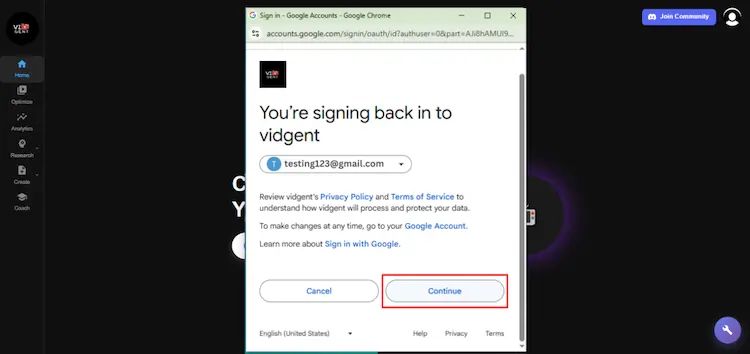
Google Authorization Process: When you click to connect your channel, you’ll be redirected to Google’s secure authorization page. This is Google’s official OAuth system, which means your login credentials are never shared with VidGent. Google handles all the security.
You’ll see a screen asking you to:
- Confirm the Google account you want to use
- Review the permissions VidGent is requesting
- Authorize the connection
Click ‘Continue’
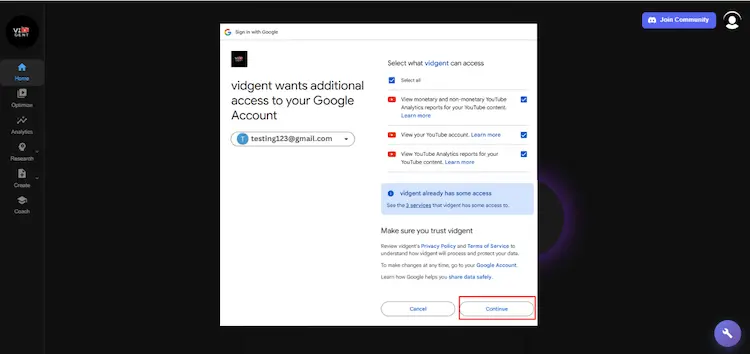
Understanding Permissions: VidGent will request access to:
- View your YouTube channel analytics data
- Read basic channel information (name, subscriber count, etc.)
- Access video performance metrics
- View audience demographic data
Important: VidGent cannot and will not:
- Post content to your channel
- Delete or modify your videos
- Access your personal Google data outside of YouTube
- Share your data with third parties
Welcome to VidGent Dashboard: Once connected, you should see your YouTube channel name and basic information displayed, giving you access to all core features and tools.
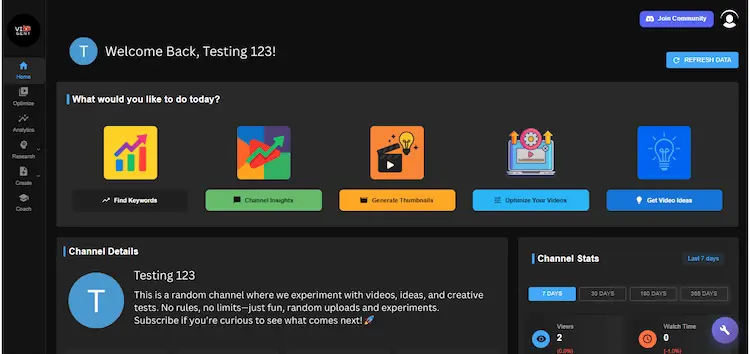
Multiple Channels: If you manage multiple YouTube channels, you will have to first disconnect the current YouTube channel via the Profile Icon. VidGent supports multi-channel management, allowing you to switch between channels.

Troubleshooting Connection Issues
If you encounter problems during connection:
- Ensure you’re logged into the correct Google account
- Check that you have administrative access to the YouTube channel
- Try clearing your browser cache and cookies
- Disable browser extensions that might interfere with the authorization process
- Contact VidGent support if issues persist
Once your channel is successfully connected, you’re ready to explore your comprehensive analytics dashboard and start making data-driven decisions about your YouTube content strategy.
Common Setup Questions
Q1. Is VidGent free to use?
Yes. VidGent is currently available entirely for free.
Q2. Do I need to give VidGent full access to my YouTube account?
VidGent only requests standard YouTube permissions necessary to optimize videos, update and analyze performance. Your credentials remain secure through Google authorization.
Q3. Can VidGent optimize videos I have already uploaded?
Absolutely. VidGent’s Optimize feature allows you to update titles, tags, descriptions, and thumbnails on existing videos to improve their SEO and overall visibility.
Q4. Can I track how my competitors are performing?
Yes. VidGent includes a Competitor Tracking tool, which lets you add competitor channels and compare their performance metrics with your own.
Q5. Does VidGent work on mobile devices?
Yes. VidGent is web-based and accessible on mobile browsers. However, for the initial setup and full feature access, a desktop or laptop is recommended.
Conclusion
Congratulations! You’ve successfully set up your VidGent account and connected your YouTube channel. You now have access to powerful analytics tools that go far beyond what YouTube Studio offers, giving you the insights needed to grow your channel strategically.
With your channel connected, you can now:
- Monitor your video performance in real-time
- Understand your audience demographics and behavior patterns
- Track key metrics that matter most to your growth goals
- Make informed decisions about your content strategy
- Identify opportunities for optimization and improvement
What’s Next? Now that your setup is complete, take some time to explore your VidGent dashboard. Start by familiarizing yourself with the key metrics displayed and consider setting up your first performance goals. The data you see today will become the baseline for measuring your channel’s growth.
Remember, analytics are only valuable when you act on the insights they provide. Use your new VidGent dashboard regularly to guide your content decisions, and don’t hesitate to reach out to VidGent’s support team if you have questions as you begin your analytics journey.
